
What's new 2025: Winter Camerito update
December 18, 2025


Camerito’s 2025 winter update is our biggest release of the year – one we’ve been working on for a long time and are thrilled to finally share. It brings many innovations, all designed to make monitoring your home smoother and more powerful.
Siren
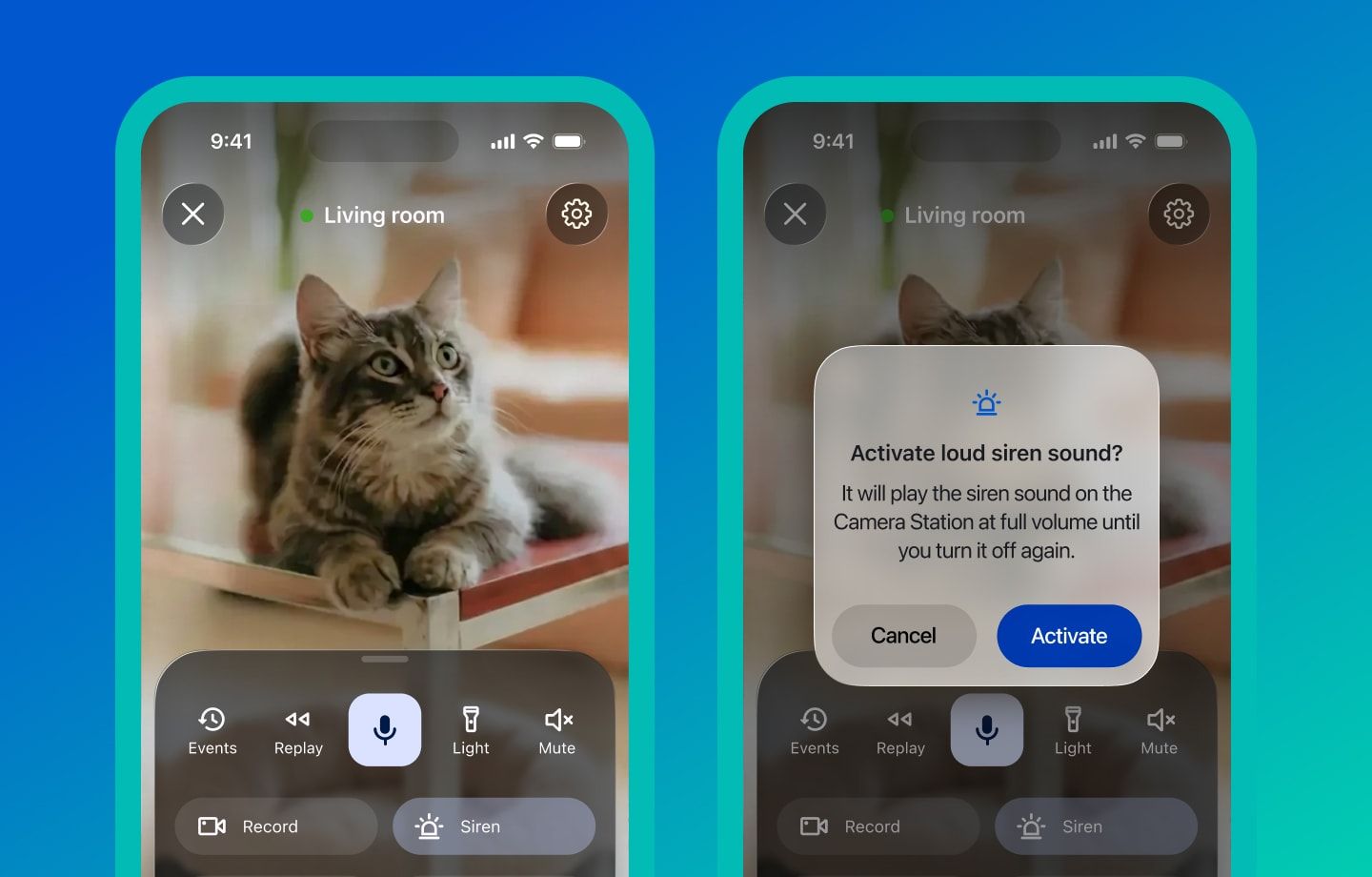
Keep your home even safer with the new built-in Siren that plays directly on your Camera Station. Whenever you spot something unusual in the live view, you can instantly trigger a loud alarm sound remotely.
The Siren immediately draws attention to suspicious activity and helps scare away intruders, giving you extra peace of mind that you can react in seconds and use sound as a powerful deterrent.
How to use the Siren
You can control the Siren only from the Viewer Station. Once activated, the Siren plays at full volume on the Camera Station and automatically turns off after one hour, or you can turn it off manually at any time.
To activate it, open the live view of the Camera Station you want to trigger the Siren on, then tap on the Siren. To turn it off, simply tap the Siren button again.
You can tell the Siren is on when:
- the Siren button is highlighted, and
- a Siren status icon appears at the top of the screen.
Delete multiple events
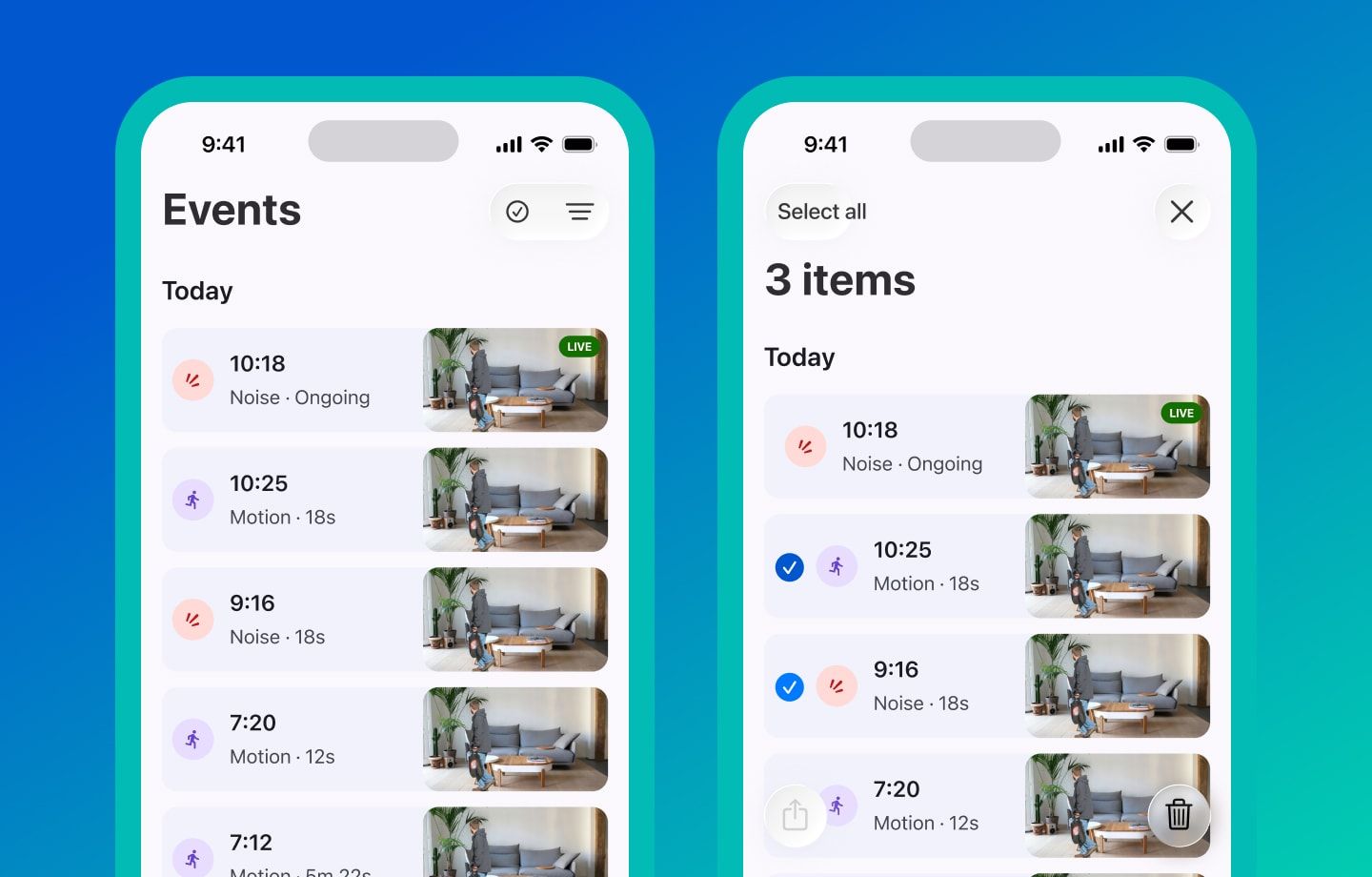
Your timeline just got easier to manage. You can now select several events at once and delete them in a single step. This is especially handy after days with a lot of motion – you can quickly clean up your history and keep only the important recordings.
How to delete events on iOS
- Go to Events → tap Select → tap the event cards you want to select
- When you’re ready, tap Delete at the bottom of the screen
How to delete events on Android
- Go to Events → long press on any item → tap the event cards you want to select
- When you’re ready, tap Delete at the top of the screen
Action panel editing
We’ve streamlined how you tweak the action panel. Editing has now been fully integrated into the Camera Settings, so you can manage your shortcuts and actions in one place. This makes it easier to customize the panel to your needs and keep the most important controls just a tap away.
Record short clips
Until now, Camerito only recorded events that were triggered automatically by motion or noise detection. That works great for security alerts, but sometimes you simply want to save exactly what you’re seeing at that moment.
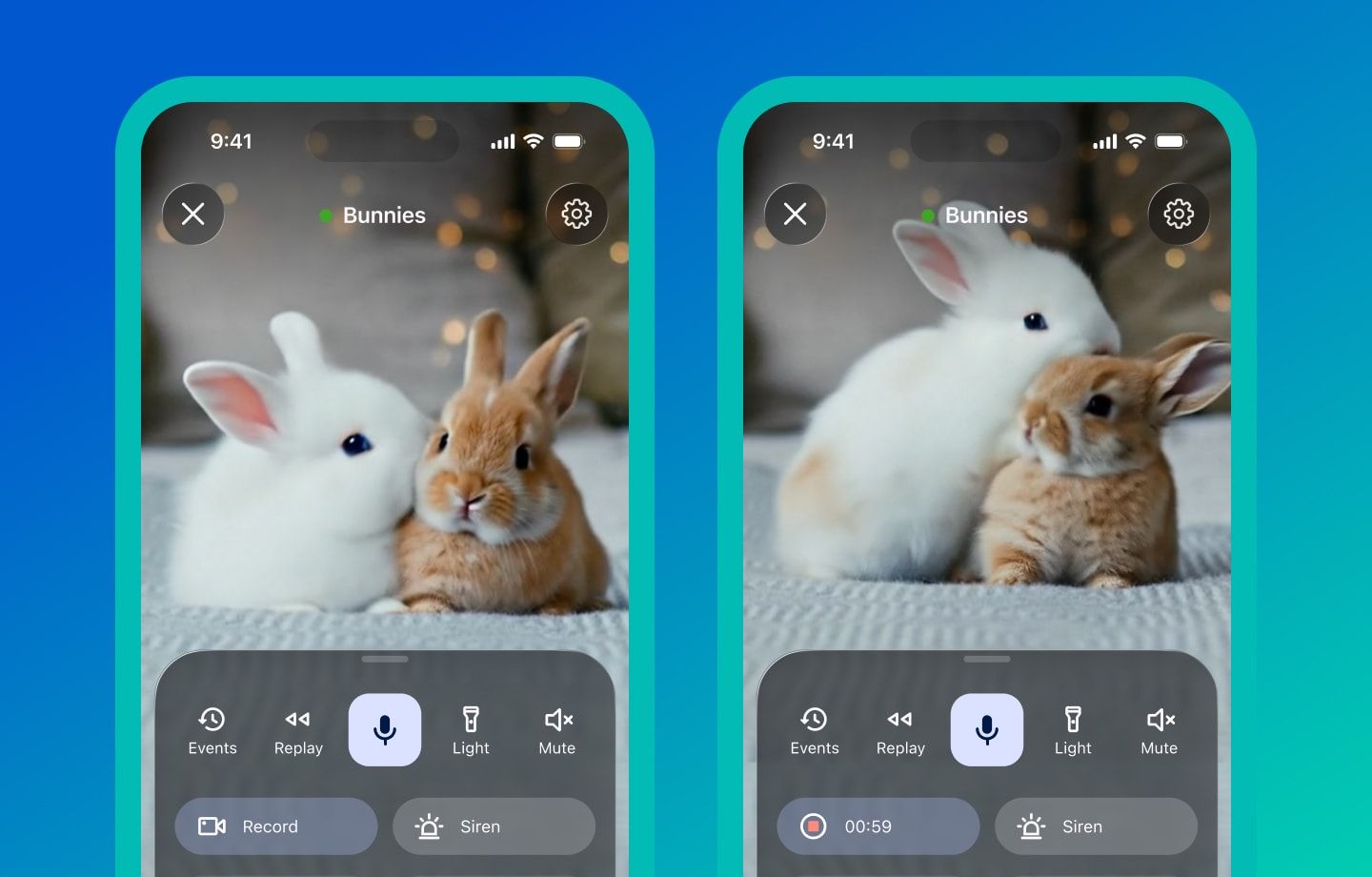
With the new Record feature, you can manually record anything you need, whenever you need it. Each clip can be up to 60 seconds long, and once the recording finishes, it’s automatically saved among your other events.
How to record short clips
- Open the Camera you want to record from on the Viewer Station
- Pull up the action panel
- Tap Record to start recording. You’ll see a countdown showing how much time is left of the 60-second limit.
- To stop recording at any time, tap the Record button again.
Note: If you don’t see the Record button, swipe the panel to the right – it will appear at the end of the list of actions.
Once you stop, the clip is automatically saved to your Events, where you can watch it back or share it just like any other event.
Change camera order
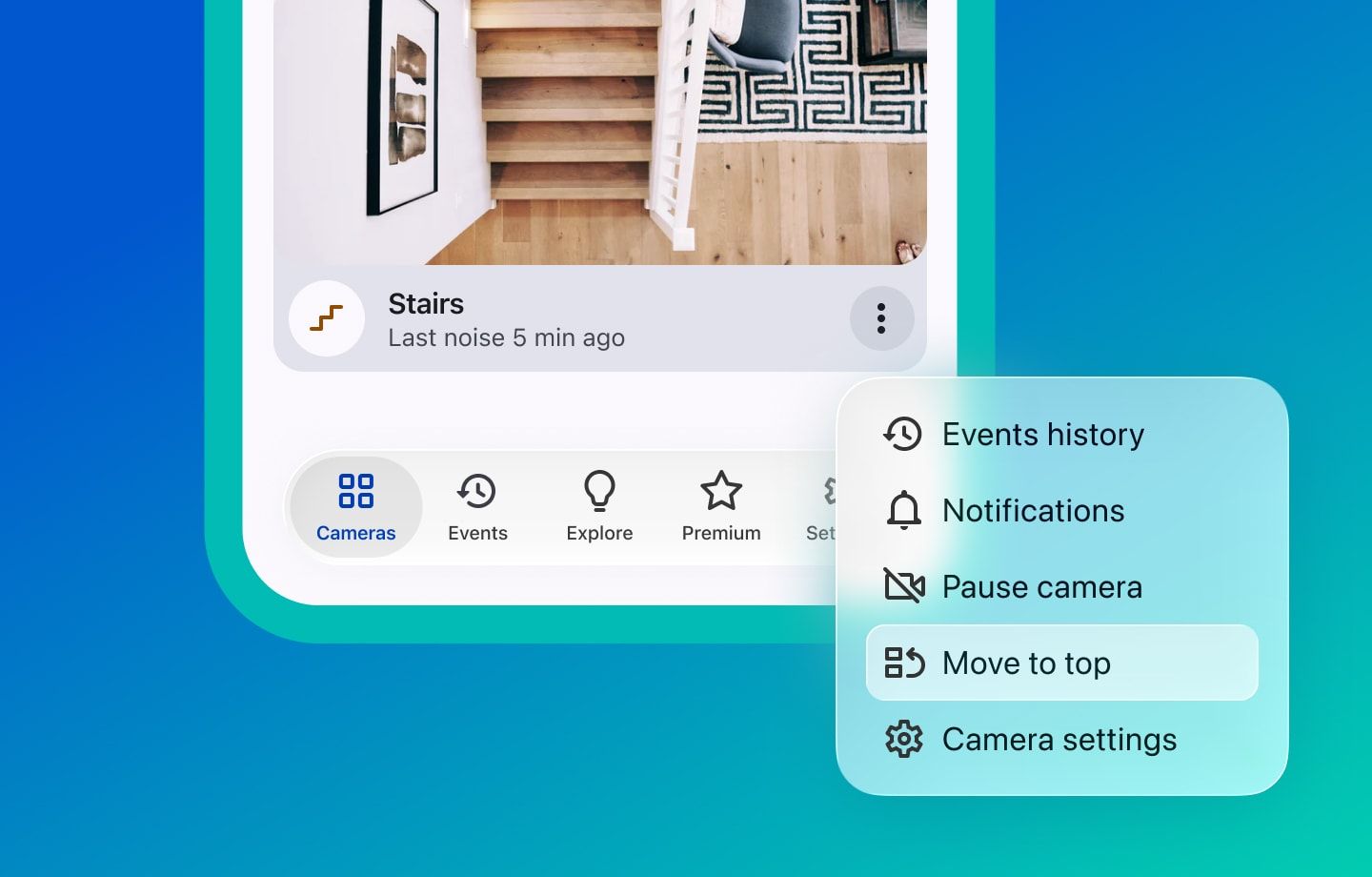
Now, you’re in control of how your camera list is arranged. You can now change the order of your cameras and keep the most important ones at the top of the list, so you always see your key views first – for example the entrance, living room, or baby’s room.
To change the order of your cameras, tap More next to the camera you want to move → Move to top
Liquid Glass on iOS
If you’re using Camerito on iPhone or iPad, you’ll notice the app has a fresh new look. Camerito now supports Apple’s new Liquid Glass design on iOS, bringing a softer, glass-like appearance to menus, panels, and controls.
The interface gently blurs and picks up colors from the background video, so the live feed stays in focus while the controls feel lighter and more modern. The result is a cleaner look that fits right in with the latest iOS design and makes monitoring your home feel even more seamless.
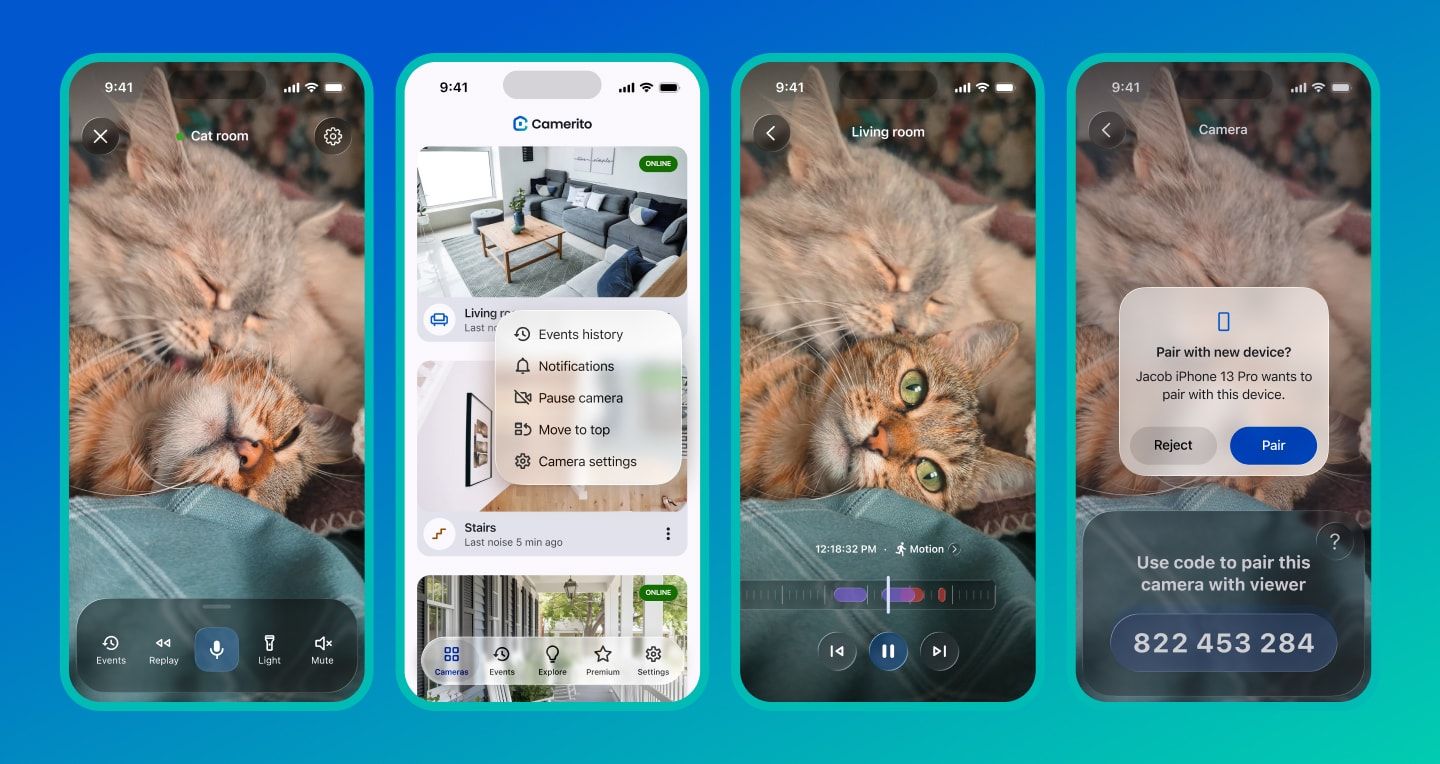
Liquid Glass is available for devices with iOS 26 or later. Other platforms keep the familiar Camerito look you already know.